Apex Domains
How to redirect an apex domain on deco.cx
If you see a 'Legacy redirect detected' banner in the admin, follow the step-by-step migration guide.
What is an Apex Domain?
An apex domain is the root domain without any subdomain.
Example:
www.example.com→ Subdomainloja.example.com→ Subdomainexample.com→ Apex Domain
Can I point a deco.cx site to the apex domain?
Not directly — deco.cx sites run on a subdomain (e.g. www ). However, deco.cx provides a managed redirect service so that visitors who access the apex domain are automatically sent to the right place.
How to Set Up an Apex Redirect
1. In your site’s control panel, go to Settings → Domains and click Add existing domain.
2. Enter your apex domain (without subdomain):
3. Define which subdomain to redirect to:
4. Add the following DNS records at your DNS provider:
| Type | Name | Value |
|---|---|---|
| A | @ | 16.148.147.194 |
| A | @ | 52.32.122.94 |
| A | @ | 52.35.156.199 |
Note:
@represents the apex (root) domain. Some DNS providers use the full domain name or leave this field blank — check your provider’s documentation.
5. Refresh the Settings → Domains page to check the status. Once the certificate is provisioned the entry will show Active. This usually takes a few minutes.
Migrating from the Legacy System
If you see a “Legacy redirect detected” banner in the admin, one or more apex domains on your site are still using the old redirect system and need to be migrated.
What is an apex domain? It’s the root domain without any subdomain — e.g.
example.com (apex) as opposed to www.example.com or loja.example.com
(subdomains).
Your site will not go down. The subdomain where your site actually runs
(e.g. www.example.com ) is not affected at any point during the migration.
Only the apex redirect (e.g. example.com → www.example.com ) goes through
a brief transition.
Step 1 — Re-add the domain
In Settings → Domains, click Add existing domain and enter the same apex domain again. Set the redirect subdomain on the next step and confirm. A new entry appears alongside the existing legacy entry.
Step 2 — Add the new DNS records
Log in to your DNS provider — this is the service where you registered or manage your domain (e.g. GoDaddy, Cloudflare, Registro.br, Hostgator). Add the following three records:
| Type | Name | Value |
|---|---|---|
| A | @ | 16.148.147.194 |
| A | @ | 52.32.122.94 |
| A | @ | 52.35.156.199 |
Note:
@represents the apex domain itself. Some DNS providers use the full domain name or leave this field blank — check your provider’s documentation if unsure.
Step 3 — Remove old DNS records
During this step, the apex domain (e.g. example.com ) will temporarily have no
valid HTTPS certificate — HTTP requests will continue working normally and
the redirect to www will not be interrupted. The HTTPS certificate is issued
automatically within a few minutes after DNS propagates.
Your site’s subdomain (e.g. www.example.com ) is not affected at any point.
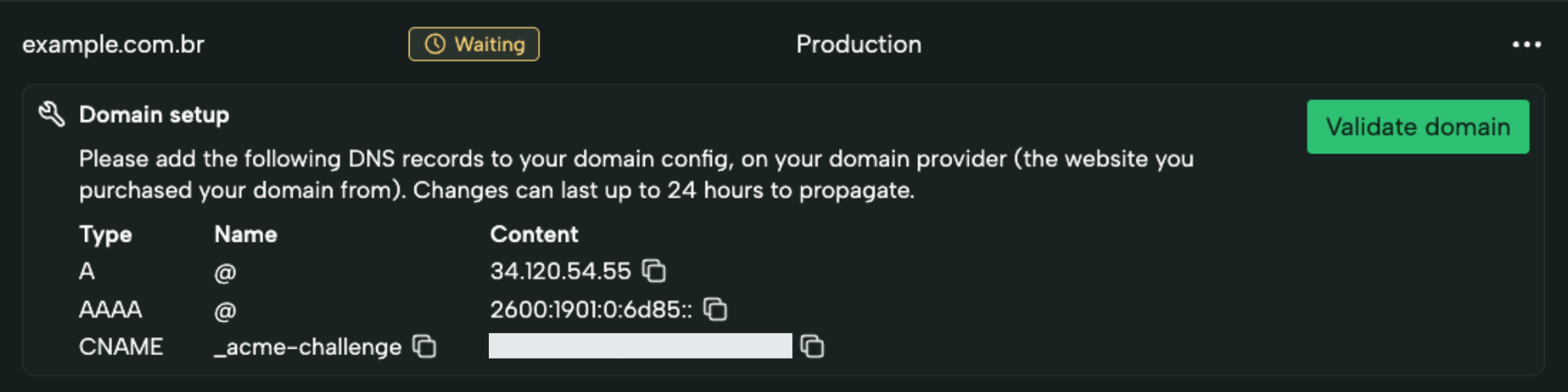
Still in your DNS provider, delete the old apex records. If you were previously using deco.cx’s legacy system (powered by Deno Deploy), the records to remove look like this:
| Type | Name | Value |
|---|---|---|
| A | @ | 34.120.54.55 |
| AAAA | @ | 2600:1901:0:6d85:: |
| CNAME | _acme-challenge | *.acme.deno.dev |
Leaving old records in place — especially the AAAA record — will cause
browsers to keep routing traffic to the old system.
After a few minutes the new entry will show Active and the migration will be complete. If you want to make sure everything is working, run a request like the one below.
You can also delete the legacy entry at this point — it’s no longer needed.
Verifying the migration
Once the new entry is Active, you can confirm the redirect is being served by deco.cx by running the following command in your terminal (replace yourdomain.com with your actual domain):
curl -s -I yourdomain.com
Look for the X-Redirect-By: deco header in the response:
HTTP/1.1 307 Temporary Redirect
Location: https://www.yourdomain.com
X-Redirect-By: deco
...
If you see X-Redirect-By: deco , the migration is complete and the apex redirect is running on the new system.
Migration Troubleshooting
The new entry won’t become Active
-
Confirm that all three
Arecords were added correctly at your DNS provider. -
Make sure the old redirect entries have been removed from your DNS provider. The old entries are:
Type Name Value A @ 34.120.54.55AAAA @ 2600:1901:0:6d85::CNAME _acme-challenge(e.g. _acme.deno.dev.) -
DNS propagation can take a few minutes — if the entry is still not Active after 30 minutes, double-check the records above.
Found an error or want to improve this page?
Edit this page